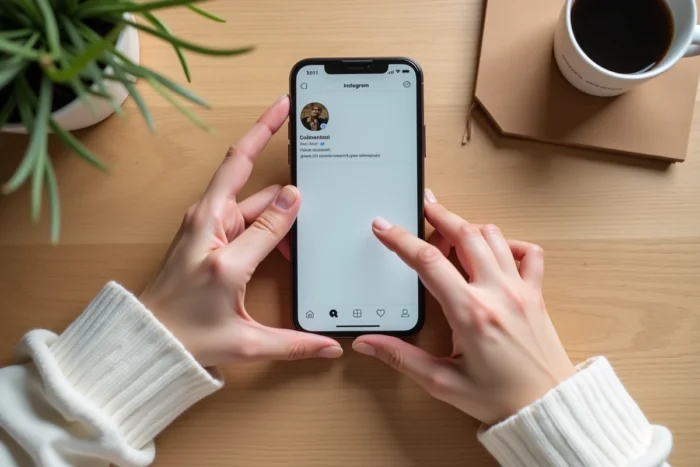
You spotted an Instagram account and its profile picture intrigues you, but it’s impossible to distinguish anything in that tiny circle. On the app, there’s no button to enlarge this thumbnail. The problem comes from a technical limitation imposed by Instagram, which displays avatars in a very reduced format.
Square format, circular display: what the Instagram thumbnail hides
Before trying to enlarge anything, one detail deserves your attention. The Instagram profile picture is stored as a square image cropped into a circle. The native format is 1:1, meaning that the four corners of the square are masked by the circular frame of the interface.
This peculiarity has a direct consequence on zooming. By enlarging the photo, you sometimes recover areas that are invisible in normal display, particularly the corners. The face or logo centered in the circle occupies only part of the actual image.
On mobile, the thumbnail is displayed in very low resolution. Recent design guides recommend importing a photo of at least 400 x 400 pixels, with a recommended resolution of 1080 x 1080 pixels to ensure sharpness on high-density screens. In other words, the source image is often much more detailed than what Instagram shows you. Several methods allow you to perform a zoom on the Insta profile picture by retrieving this larger version.
Enlarge an Instagram profile picture via the web browser
The most reliable method requires no third-party application. It relies on the source code of the Instagram web page, accessible from any browser on a computer.
Retrieve the high-quality image URL
Open Instagram in your browser (not the app). Go to the profile that interests you. Right-click on the page, then select “View Page Source” or “Inspect”.
In the code, look for a URL that contains “profile_pic” or ends with an image format (.jpg). This URL points to the full-resolution version of the profile picture. Copy it, paste it into a new tab, and the image will display in full size.
This technique works because Instagram stores multiple versions of each profile picture. The displayed thumbnail is compressed, but the server keeps a higher quality file.
Limitations of this approach
If the profile is private, the source code will only reveal a low-resolution thumbnail. Instagram protects the content of private accounts, including the profile picture in its largest dimensions. For public accounts, this method remains the most straightforward.
Online tools to zoom in on an Instagram profile without installation
Don’t want to sift through HTML code? Several websites perform this function in seconds. Their principle is the same: they query Instagram’s servers to retrieve the profile picture in its best available resolution.
Here’s what to check before using one of these tools:
- No login to your Instagram account should be required. If a site asks for your credentials, leave it immediately. Legitimate tools work only with the username of the target profile.
- The site should display the image directly in the browser, without forced downloads or redirects to an ad page.
- Check that the tool works on public profiles. No external service can bypass the privacy of a private account.
The process is simple: you enter the username, the site extracts the URL of the profile picture from Instagram’s public data, and it displays the enlarged image in seconds.
Zoom on Instagram photo from an Android or iPhone smartphone
On mobile, the options are slightly different. The Instagram app does not offer an “enlarge” button on profile pictures.
The pinch gesture does not work on avatars
You can zoom in on photos in the feed or on Stories with a pinch gesture (spreading two fingers). This gesture does not work on profile pictures. It’s a deliberate restriction of the app.
Using the mobile browser
The cleanest solution is to open Instagram in your phone’s browser (Chrome, Safari, Firefox). Access the relevant profile, then use the same logic as on a computer: long press on the profile picture, then “Open image in new tab” if your browser offers it.
On Android, the context menu offers more options than on iOS for interacting with web images. If the “Open image” option does not appear, the online tools mentioned above also work from a mobile browser.
Image quality after enlargement: what to expect
Enlarging an Instagram profile picture does not create additional pixels. If the person imported a low-resolution image, the enlarged result will be blurry. This is a physical limitation, not a tool issue.
Recent smartphone screens display very high pixel densities. A profile picture imported in low resolution may look fine in the small thumbnail, but will become pixelated once enlarged. To achieve a sharp result, the source photo must have been imported in high resolution, ideally at 1080 x 1080 pixels.
Some tools offer “upscaling” through artificial intelligence to improve sharpness. These processes invent details that do not exist in the original image. The result may appear sharper, but it does not reflect the actual photo.
Remember one thing: the quality of the zoom entirely depends on what the account owner chose to import. A well-framed, high-definition photo with the subject centered in the square will yield excellent results when enlarged. A selfie cropped from an old screenshot will remain blurry, no matter what tool is used.